Storage, Installation & Imaging
Overview
Covers preparing storage, installing an operating system, and the imaging/recovery/backup processes IT professionals rely on to deploy and restore systems.
Key concepts
- Formatting and partitioning
- Bootable USB installers
- BIOS vs UEFI
- Drivers
- System images
- Recovery environments and backups
How it works
Formatting
Formatting prepares a storage device with a file system. Formatting can erase data — always verify you selected the correct drive and back up important files first.
Partitioning
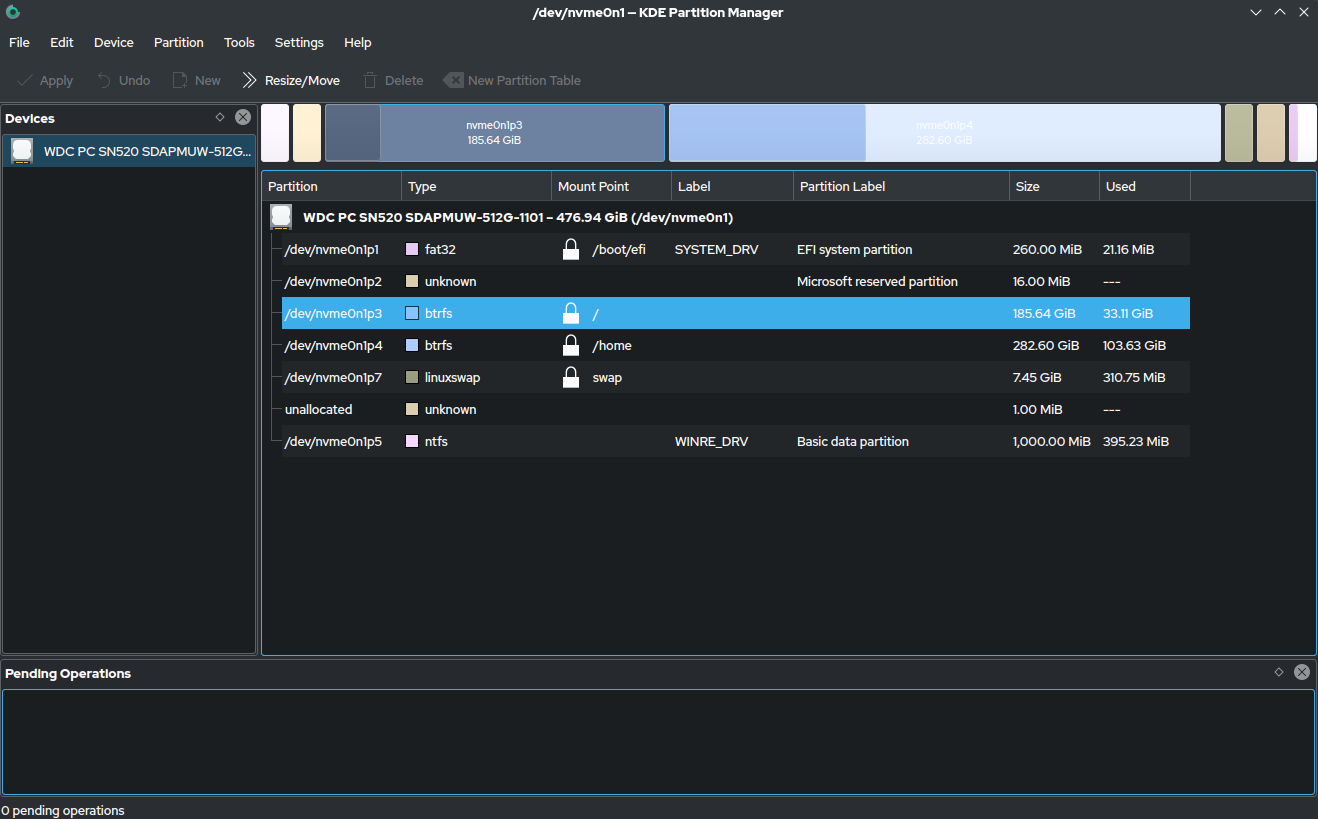
A partition is a logical section of a physical drive. One drive can have multiple partitions — e.g. a boot partition, Windows partition, recovery partition, and personal-data partition.
OS Installation
OS installation places a new copy of Windows, Linux, or macOS onto a computer — needed when building a computer, replacing a failed drive, removing malware, or repairing a damaged OS.
Bootable USB
A flash drive containing an OS installer. The computer boots from the USB instead of its normal drive, allowing installation or repair.
BIOS and UEFI
Firmware systems that start before the OS — they check basic hardware and select which device to boot from. UEFI is the modern replacement for BIOS, supporting features like Secure Boot and larger storage drives.
Drivers
Small pieces of software that let the OS communicate with hardware. Common drivers: graphics, Wi-Fi, audio, printer, Bluetooth, chipset, Ethernet. If hardware doesn't work after installing an OS, a missing or incorrect driver is a likely cause.
Imaging and Recovery
System Image
A complete copy of an OS installation, including the OS, installed apps, drivers, settings, and files. IT departments use system images to configure many computers quickly with the same known-good setup.
Recovery Environment
A set of tools used to fix startup problems, restore backups, reset a device, or troubleshoot when the OS can't start normally.
Backup
A separate copy of important files, protecting against accidental deletion, drive failure, malware, ransomware, and hardware damage. Store backups somewhere separate from the main computer — an external drive or cloud service.