PC Components
Overview
Every PC is built from a set of components, including the motherboard, CPU, RAM, storage, PSU, and the case. They must be compatible and assembled correctly to function. This is essential knowledge for anyone entering IT, especially given the high volume of technical issues helpdesks face day to day. A starting helpdesk role requires in-depth hardware knowledge — this page is a deep dive.
Key concepts
- CPU: cores, threads, control unit, ALU, registers, cache, clock
- RAM: volatile short-term memory, DIMM vs SO-DIMM, DDR4 vs DDR5
- GPU: integrated vs dedicated, GPU cores, VRAM
- Storage: HDD vs SSD vs SATA SSD
- RAID levels: 0, 1, 5, 10
How it works
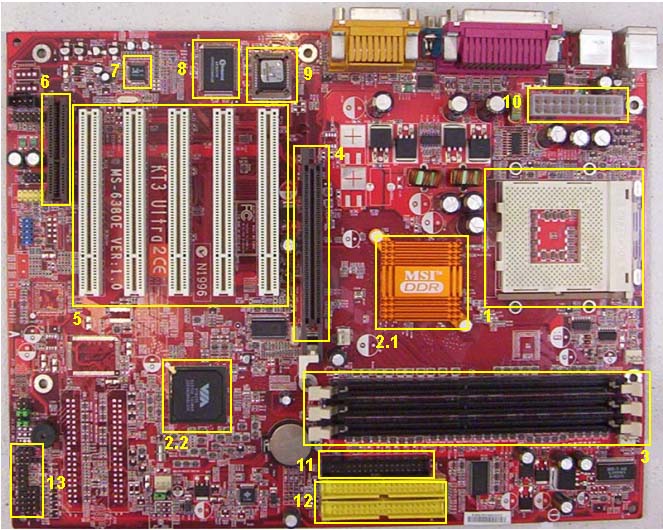
CPU
The CPU is the main processing unit for everyday and heavy-duty processing. It's made of transistors, which convert electrical signals into calculations and decisions. Several internal parts work together to make this happen:
Cores
The actual individual processing units. One core can handle one task at a time — more cores means more tasks can run in parallel.
Threads
Virtual work paths used by each core. One core can handle multiple threads, letting it juggle multiple operations at once.
Control Unit
Fetches and manages all the cores and other components — effectively the manager of the entire CPU.
ALU (Arithmetic Logic Unit)
Performs math operations for the CPU, keeping arithmetic and logic operations consistent.
Registers
Hold a small amount of storage so CPU instructions can be processed.
Cache
High-speed memory that stores frequently used data (not instructions themselves, but the information those instructions need). It speeds up processing and reduces how often the CPU has to pull data repeatedly.
Clock
Measures CPU timing — how many operations and cycles occur, ensuring tasks only take as long as needed.
RAM
What is it? RAM (Random Access Memory) is the computer's short-term memory, also called volatile memory because it loses its contents when the computer shuts down or loses power. It's used for current and background tasks so the CPU can access data faster than pulling it repeatedly from storage.
Example: you have two Chrome tabs open; one is active. That tab's content is currently loaded and being processed. When you switch to the second tab, most of its content and layout information was already kept in RAM, so it loads back in faster.
RAM Modules
The physical sticks of RAM plugged into a computer. Loose connections are a common cause of RAM-related issues.
- DIMM — full-sized RAM module used in desktop PCs.
- SO-DIMM — a smaller RAM module used in laptops and compact systems.
- Memory slots — the locations on the motherboard where RAM modules install. Check these first when troubleshooting RAM issues.
DDR4 vs. DDR5
| Spec | DDR4 | DDR5 |
|---|---|---|
| Generation | 4th gen Double Data Rate memory | Latest generation |
| Max speed | Up to ~3200 MT/s | Up to ~4800 MT/s |
| Cost | Cheaper | More expensive |
| Power | Higher power draw | Lower power draw, includes on-module PMIC for more efficient small transfers |
GPU
Integrated GPU
Built directly into the CPU. Slower, and shares the computer's system RAM instead of having dedicated video memory. Common on cheaper computers and fine for simple tasks.
Dedicated GPU
A separate card installed into a motherboard's PCIe x16 slot. Fully self-sufficient with its own processor, cooling, and dedicated video memory (VRAM). Better for demanding tasks like modern games, 3D design, and high-end rendering — at the cost of much higher power draw.
GPU Cores
Small processing units that work in parallel, splitting a graphics task into millions of smaller calculations. This parallelism lets color, shading, shadows, and pixels all render at the same time.
VRAM
High-speed memory dedicated to the GPU. Temporarily stores frame textures, frame buffers, shaders, video data, and display information.
Storage
HDD
Older storage type that stores files on a spinning magnetic disk, read/written by a moving mechanical arm.
- Pros: cheap, large capacities.
- Cons: lots of moving parts, slower, noisier.
- Typical speeds: 5,400–10,000+ RPM.
SSD
Newer storage type that stores data on memory chips instead of spinning disks.
- Pros: faster, quieter, more durable.
- Cons: more expensive.
SATA SSD
An SSD that uses a SATA interface — faster than an HDD and cheaper than an NVMe SSD, but slower than NVMe and pricier than an HDD.
Note: different storage devices use different connectors/pins — check documentation for how a given drive physically installs.
RAID
| Level | How it works | Example |
|---|---|---|
| RAID 0 | Splits data across drives for speed, no redundancy — if one drive fails, everything on it is lost. | — |
| RAID 1 | Mirrors the same data on two drives for redundancy. Both would need to fail to lose data. | 2× 1TB drives → 1TB usable |
| RAID 5 | Uses 3+ drives, distributing data plus parity info. One drive can fail and the rest can rebuild the lost data from parity. | 3× 1TB drives → 2TB usable |
| RAID 10 (1+0) | Uses 4 drives — mirrors pairs, then stripes data across those pairs for speed and redundancy. | 4× 1TB drives → 2TB usable |